Choosing the right approach to fixing pc audio issues starts with clear context, practical filters, and realistic expectations.
Introduction to PC Audio Issues
PC audio issues can be frustrating, especially when you're in the middle of an important task or entertainment. The problem can stem from various sources, including faulty drivers, incorrect settings, or hardware malfunctions. Identifying the root cause is crucial to resolving the issue efficiently.
Understanding Common Audio Problems
Common audio problems on PCs include no sound, distorted sound, or sound that's only coming from one speaker. These issues can be caused by outdated or corrupted audio drivers, misconfigured audio settings, or physical damage to the speakers or sound card. It's essential to approach each problem with a systematic troubleshooting methodology to avoid wasting time and effort.
Identifying the Source of the Problem
To fix audio issues on your PC, you first need to identify the source of the problem. This involves checking the physical connections, ensuring that the audio device is properly connected to the PC, and verifying that the audio device is set as the default device in the Windows settings.
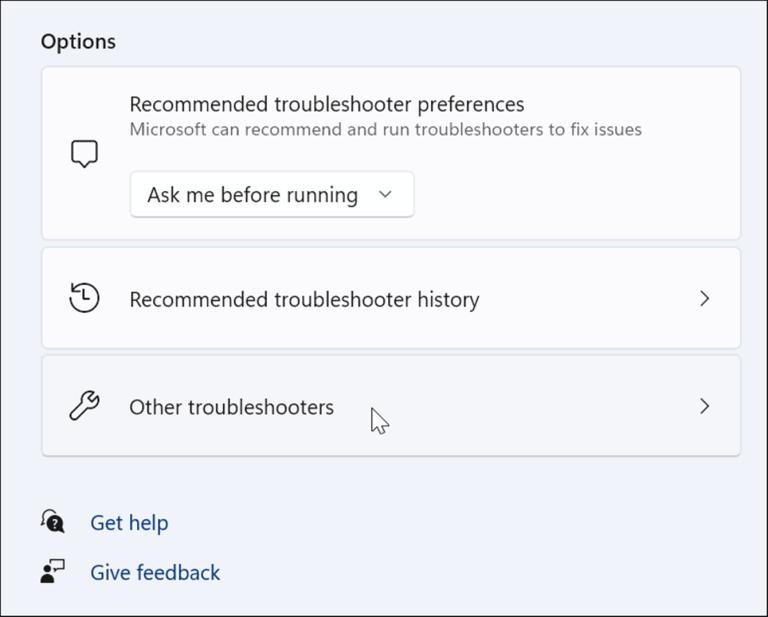
Troubleshooting Audio Drivers Audio drivers play a critical role in ensuring that your
PC's audio functions properly. Outdated, corrupted, or missing drivers can lead to various audio issues. Updating audio drivers to the latest version can often resolve these problems. However, the process of updating drivers can be complex, especially for those who are not tech-savvy.
Tools for Updating Audio Drivers Several
tools are available to help update audio drivers, including: - Driver Booster - Driver Easy - Snappy Driver Installer - Driver Talent - AVG Driver Updater
These tools can automatically scan your PC for outdated drivers and update them to the latest versions, streamlining the process and reducing the risk of installing incorrect drivers.
Configuring Audio Settings Incorrectly configured audio settings can also lead to audio issues.
This includes settings such as the default audio device, speaker configuration, and audio enhancements. Adjusting these settings to match your hardware and preferences can resolve issues like no sound or distorted sound.
Importance of Default Audio Device Setting the correct default audio device is crucial.
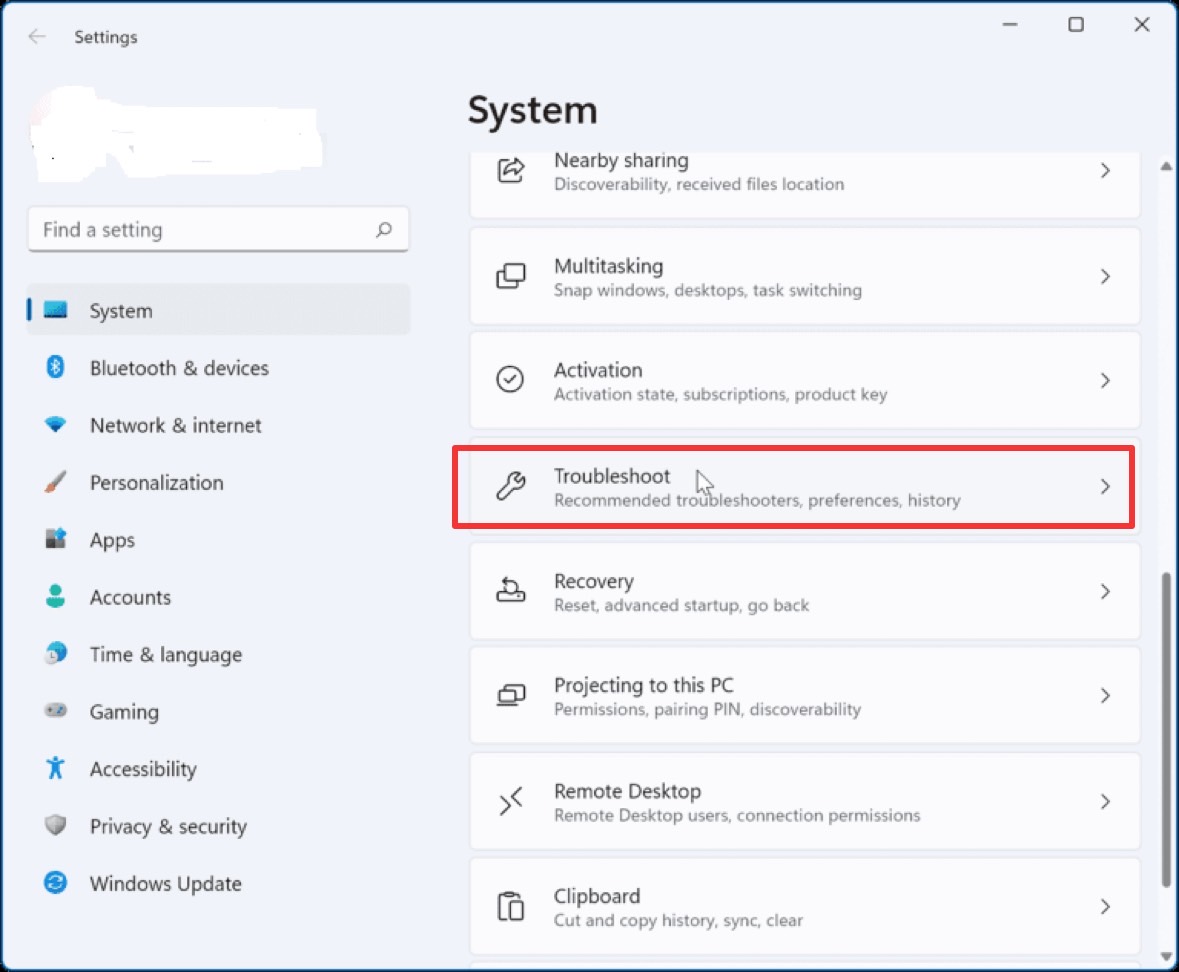
If your PC is set to use a device that is not connected or not functioning, you won't hear any sound. This setting can be adjusted in the Sound settings of the Control Panel.
Practical Tips for Resolving Audio
Issues - Regularly Update Drivers: Keeping your audio drivers up to date can prevent many audio issues. - Check Physical Connections: Ensure all cables are securely connected to the correct ports. - Disable Audio Enhancements: Sometimes, audio enhancements can cause issues; disabling them can resolve problems like distorted sound.
Limitations and Common Mistakes
One common mistake when troubleshooting audio issues is neglecting to check the basics, such as volume levels and mute settings. Another limitation is relying solely on automated tools without understanding the underlying cause of the problem. A balanced approach that includes both manual troubleshooting and the use of tools is often the most effective.
Conclusion Fixing audio issues on your
PC requires a systematic approach that involves identifying the problem, troubleshooting potential causes, and applying practical solutions. By understanding common audio problems, keeping your drivers updated, and correctly configuring your audio settings, you can resolve most PC audio issues. Remember, patience and a methodical approach are key to successfully troubleshooting and fixing audio problems on your PC.